

Wat gaan we bouwen, een overzicht:
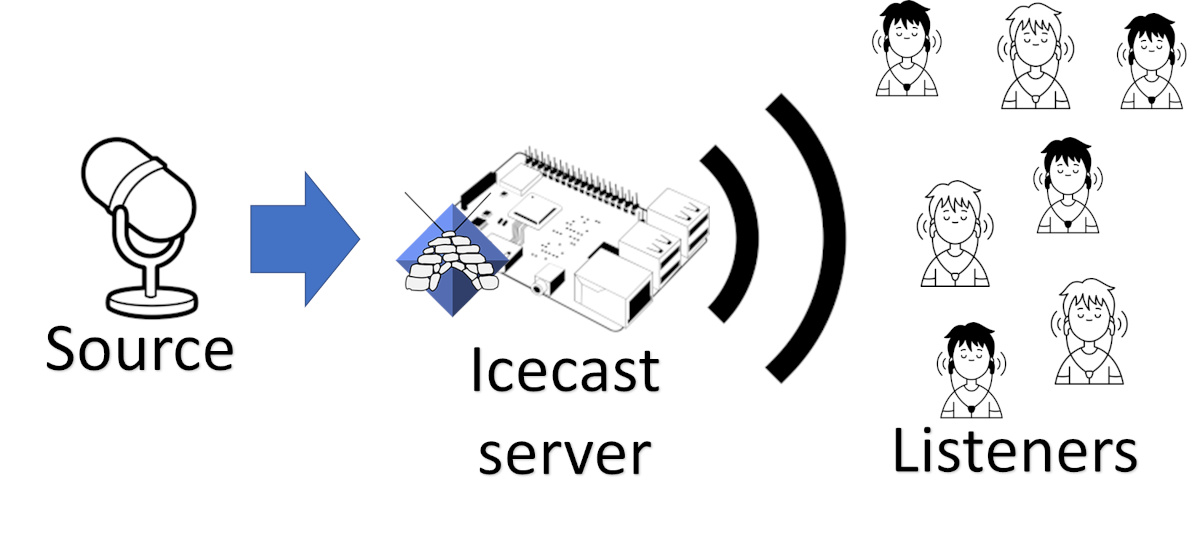
In dit geval op een Pi met Volumio
sudo apt update -y && sudo apt upgrade -y
sudo apt install icecast2 ices2
Ices2 ondersteund mp3, geen flac maar dat lossen we op met ffmpeg die er weer mp3 van maakt.
Bij het installeren moet een interactief scriptje krijgen die je iceast2 server initialiseert. Krijg je die niet gebruik dan onderstaand voorbeeld.
Voorbeeld XML
Kopieer onderstaand xml bestand naar /etc/icecast2.xml (root:root) Mogelijk moet je de rode gegevens aanpassen. Alles wat blauw is is configuratie dat uitgecommentarieerd is. Alle uitleg staat hier: https://icecast.org/docs/icecast-2.4.1/config-file.html
<icecast>
    <!-- location and admin are two arbitrary strings that are e.g. visible on the server info page of the icecast web interface
         (server_version.xsl). -->
    <location>Earth</location>
    <admin>icemaster@localhost</admin>

    <limits>
        <clients>100</clients>
        <sources>2</sources>
        <threadpool>5</threadpool>
        <queue-size>524288</queue-size>
        <client-timeout>30</client-timeout>
        <header-timeout>15</header-timeout>
        <source-timeout>10</source-timeout>
        <!-- If enabled, this will provide a burst of data when a client first connects, thereby significantly reducing the startup
             time for listeners that do substantial buffering. However, it also significantly increases latency between the source
             client and listening client.  For low-latency setups, you might want to disable this. -->
        <burst-on-connect>1</burst-on-connect>
        <!-- same as burst-on-connect, but this allows for being more specific on how much to burst. Most people won't need to
             change from the default 64k. Applies to all mountpoints  -->
        <burst-size>65535</burst-size>
    </limits>

    <authentication>
        <!-- Sources log in with username 'source' -->
        <source-password>hackme</source-password>
        <!-- Relays log in username 'relay' -->
        <relay-password>hackme</relay-password>

        <!-- Admin logs in with the username given below -->
        <admin-user>admin</admin-user>
        <admin-password>hackme</admin-password>
    </authentication>

    <!-- set the mountpoint for a shoutcast source to use, the default if not specified is /stream but you can change it here if
         an alternative is wanted or an extension is required
    <shoutcast-mount>/live.nsv</shoutcast-mount>
    -->

    <!-- Uncomment this if you want directory listings -->
    <!--
    <directory>
        <yp-url-timeout>15</yp-url-timeout>
        <yp-url>http://dir.xiph.org/cgi-bin/yp-cgi</yp-url>
    </directory>
     -->

    <!-- This is the hostname other people will use to connect to your server.
         It affects mainly the urls generated by Icecast for playlists and yp listings. -->
    <hostname>localhost</hostname>

    <!-- You may have multiple <listener> elements -->
    <listen-socket>
        <port>8000</port>
        <!-- <bind-address>127.0.0.1</bind-address> -->
        <!-- <shoutcast-mount>/stream</shoutcast-mount> -->
    </listen-socket>
    <!--
    <listen-socket>
        <port>8001</port>
    </listen-socket>
    -->

    <!--<master-server>127.0.0.1</master-server>-->
    <!--<master-server-port>8001</master-server-port>-->
    <!--<master-update-interval>120</master-update-interval>-->
    <!--<master-password>hackme</master-password>-->

    <!-- setting this makes all relays on-demand unless overridden, this is useful for master relays which do not have <relay> definitions here.
         The default is 0 -->
    <!--<relays-on-demand>1</relays-on-demand>-->

    <!--
    <relay>
        <server>127.0.0.1</server>
        <port>8001</port>
        <mount>/example.ogg</mount>
        <local-mount>/different.ogg</local-mount>
        <on-demand>0</on-demand>

        <relay-shoutcast-metadata>0</relay-shoutcast-metadata>
    </relay>
    -->

    <!-- Only define a <mount> section if you want to use advanced options,
         like alternative usernames or passwords
    <mount>
        <mount-name>/example-complex.ogg</mount-name>

        <username>othersource</username>
        <password>hackmemore</password>

        <max-listeners>1</max-listeners>
        <dump-file>/tmp/dump-example1.ogg</dump-file>
        <burst-size>65536</burst-size>
        <fallback-mount>/example2.ogg</fallback-mount>
        <fallback-override>1</fallback-override>
        <fallback-when-full>1</fallback-when-full>
        <intro>/example_intro.ogg</intro>
        <hidden>1</hidden>
        <no-yp>1</no-yp>
        <authentication type="htpasswd">
                <option name="filename" value="myauth"/>
                <option name="allow_duplicate_users" value="0"/>
        </authentication>
        <on-connect>/home/icecast/bin/stream-start</on-connect>
        <on-disconnect>/home/icecast/bin/stream-stop</on-disconnect>
    </mount>

    <mount>
        <mount-name>/auth_example.ogg</mount-name>
        <authentication type="url">
            <option name="mount_add"       value="http://myauthserver.net/notify_mount.php"/>
            <option name="mount_remove"    value="http://myauthserver.net/notify_mount.php"/>
            <option name="listener_add"    value="http://myauthserver.net/notify_listener.php"/>
            <option name="listener_remove" value="http://myauthserver.net/notify_listener.php"/>
        </authentication>
    </mount>

    -->

    <fileserve>1</fileserve>

    <paths>
	<!-- basedir is only used if chroot is enabled -->
        <basedir>/usr/share/icecast2</basedir>

        <!-- Note that if <chroot> is turned on below, these paths must both
             be relative to the new root, not the original root -->
        <logdir>/var/log/icecast2</logdir>
        <webroot>/usr/share/icecast2/web</webroot>
        <adminroot>/usr/share/icecast2/admin</adminroot>
        <!-- <pidfile>/usr/share/icecast2/icecast.pid</pidfile> -->

        <!-- Aliases: treat requests for 'source' path as being for 'dest' path
             May be made specific to a port or bound address using the "port"
             and "bind-address" attributes.
          -->
        <!--
        <alias source="/foo" destination="/bar"/>
          -->
        <!-- Aliases: can also be used for simple redirections as well,
             this example will redirect all requests for http://server:port/ to
             the status page
          -->
        <alias source="/" destination="/status.xsl"/>
    </paths>

    <logging>
        <accesslog>access.log</accesslog>
        <errorlog>error.log</errorlog>
        <!-- <playlistlog>playlist.log</playlistlog> -->
      	<loglevel>3</loglevel> <!-- 4 Debug, 3 Info, 2 Warn, 1 Error -->
      	<logsize>10000</logsize> <!-- Max size of a logfile -->
        <!-- If logarchive is enabled (1), then when logsize is reached
             the logfile will be moved to [error|access|playlist].log.DATESTAMP,
             otherwise it will be moved to [error|access|playlist].log.old.
             Default is non-archive mode (i.e. overwrite)
        -->
        <!-- <logarchive>1</logarchive> -->
    </logging>

    <security>
        <chroot>0</chroot>
        <!--
        <changeowner>
            <user>nobody</user>
            <group>nogroup</group>
        </changeowner>
        -->
    </security>
</icecast>
CIFS Filesystem
Ik heb een NAS die alleen kan mounten over CIFS (inderdaad oud apparaat). Dit geeft wat uitdagingen. Het blijkt dat het CIFS filesysteem er nog niet is als een “radio” station wordt opgestart via systemd (radio service is enabled). Na heel veel tijd en veel @#!$%$$%^^&** heb ik het opgegeven. Ik start de radio stations op via de cron 3 minuten nadat het systeem geboot is.
De details, /etc/fstab entry voor het filesysteem met all trakcs, playlists etc is:
//192.168.2.5/audio /Media/audio cifs username=admin,password=<GEHEIM>,uid=1000,gid=1000,file_mode=0775,dir_mode=0775,x-systemd.automount 0 0
De cronttab is
@reboot sleep 180 && sudo systemctl start arjan-radio 1-marike-radio
Ik hoop dat jij deze ellende niet hebt ….
De <mount> sectie
In het bestand /etc/icecast2/icecast.xml ziet een uitgecommentarieerde mountpoints sectie. Maak een nieuwe <mount> sectie die er als volgt uit ziet:
<mount>
  <mount-name>/Arjan.mp3</mount-name>
  <password>sourcepass</password>

  <stream-name>Arjan's Playlist</stream-name>
  <stream-description>Beste muziek volgens Arjan</stream-description>
  <stream-url>http://volumio:8000/Arjan.mp3</stream-url>

  <genre>Mixed</genre>

  <on-connect>/usr/local/bin/telegramsend New connection to mount Arjan</on-connect>
  <on-disconnect>/usr/local/bin/telegramsend Disconnect from mount Arjan</on-disconnect>
</mount>
Pas eventueel het wachtwoord aan (goed plan!!!), die on-connect en on-disconnect werken bij mij niet .. helaaas. Later maar eens uitzoeken.
Alle opties van een <mount> vindt je hieronder, dit ter info:
<mount>
  <mount-name>/radio</mount-name>
  <username>source</username>
  <password>geheim</password>

  <stream-name>Mijn Radio</stream-name>
  <stream-description>Beste muziek</stream-description>
  <stream-url>https://example.com</stream-url>
  <genre>Mixed</genre>

  <fallback-mount>/fallback</fallback-mount>
  <fallback-override>1</fallback-override>

  <max-listeners>100</max-listeners>
  <public>1</public>

  <on-connect>/usr/local/bin/onconnect.sh</on-connect>
  <on-disconnect>/usr/local/bin/ondisconnect.sh</on-disconnect>
</mount>
Doe er je voordeel mee als er opties zijn die je belangrijk vindt.
systemd-tmp-files
Mocht je het installeren op een systeem dat helemaal in RAM draaid (denk b.v. aan Volumio) dan moet je zorgen dat alle directories er zijn. Dit doe je met systemd-tmp-files.
sudo vi /etc/tmpfiles.d/icecast.conf
Plaats hierin:
d /var/log/icecast2 0755 icecast2 icecast -
Ffmpeg
Ffmpeg kan niet overweg met de M3U playlist zoals gegeven, die moeten we eerst ombutsen. Om te zorgen dat ze er altijd zijn (en eventueel altijd overnieuw gegenereerd kunnen worden) maken we een map in in /Media:
mkdir /Media/audio/IcecastRadio
In deze map komen alle omgezette M3U playlists voor ffmpeg.
Omzetten gaat als volgt:
grep -v '^#' /Media/audio/Playlists/arjan/Arjan.m3u \ | grep -v '^$' \ | while IFS= read -r line; do printf 'file %q\n' "$line" done \ > /Media/audio/IcecastRadio/Arjan-playlist.txt
Even testen met:
ffmpeg -re -f concat -safe 0 -i /Media/audio/IcecastRadio/Arjan-playlist.txt \
  -codec:a libmp3lame -b:a 192k -content_type audio/mpeg \
  -f mp3 icecast://source:sourcepass@localhost:8000/Arjan.mp3
Er zijn twee scripts gemaakt: ffmpeg2icecast.sh en m3u2txt.sh om bovenstaande commando’s wat algemener te maken. Deze staan beide in /tenhoopen/src/volumio. Deze scripts worden zodaelijk nog aangepast om ook te zorgen dat metadata mee gezonden wordt, niet alleen de muziek.
Maak een service file, /etc/systemd/system/arjan-radio.service, om deze stream automatisch te starten bij booten:
[Unit]
Description=Arjan Radio Stream (ffmpeg)
After=network-online.target icecast2.service
Wants=network-online.target icecast2.service

[Service]
Type=simple
ExecStart=/usr/local/bin/ffmpeg2icecast arjan Arjan
Restart=always
RestartSec=5
Nice=5

[Install]
WantedBy=multi-user.target
Systemd op de hoogte brengen:
sudo systemctl daemon-reload
sudo systemctl enable arjan-radio
sudo systemctl start arjan-radio
sudo systemctl status arjan-radio
Track metadata
Album Cover
sudo vi /etc/tmpfiles.d/icecast2.conf
Voeg toe:
d /var/www/html/covers/ 0755 icecast2 icecast -
Meer streams/playlists
- Maak een playlist in text formaat (gebruik m3u2txt)
- Maak een bijbehorende systemd service file (neem arjan-radio.service als voorbeeld)
- Maak aparte mounts in icecast2
- De kans dat covers (in /var/html/covers) elkaar gaan bijten is wel heel erg klein (als je dit script nog steeds gebruikt, zie hierboven).
General Reset
sudo systemctl stop arjan-radio
/usr/local/bin/m3u2txt arjan Arjan
sudo systemctl start arjan-radio
Achtergrond info: https://peppe8o.com/open-source-web-radio-with-icecast-and-raspberry-pi/
Iets om te onthouden LOL
Ices2
De ices2 instanties moet je met systemd opstarten, voor elke source (elke ices2) maak je een service file, hier een voorbeeld:
#
# Copyright (c) 2013 Pascal Bleser <pascal.bleser@opensuse.org>
# Authors:
# * Pascal Bleser
# * http://pyn00b.blogspot.be/2012/11/life-with-systemd-part-2.html
# * Werner Fink for the postfix.service file
# * Arjan ten Hoopen for modifications for ices
#
# Description:
#
# Start the Ices source betonuur for IceCast.
#

[Unit]
Description=Ices source for Playsist TestStreamOGG
Requires=icecast2.service
After=icecast2.service

[Service]
ExecStart=/usr/bin/ices2 /etc/ices2/TestStreamOGG.xml
Type=forking
User=icecast2

[Install]
WantedBy=multi-user.target
Sla deze file op als /usr/lib/systemd/system/ices2-betonuur.service
Opstarten via
sudo systemctl start ices2-betonuur
sudo systemctl enable ices2-betonuur
Voorbeeld configuratie voor een ices2.xml config file:
<?xml version="1.0"?>
<ices>
<!-- run in background -->
<background>1</background>
<!-- where logs, etc go. -->
<logpath>/var/log/ices</logpath>
<logfile>ices-TestStreamOGG.log</logfile>
<!-- 1=error,2=warn,3=info,4=debug -->
<loglevel>4</loglevel>
<!-- set this to 1 to log to the console instead of to the file above -->
<consolelog>0</consolelog>

<!-- optional filename to write process id to -->
<!-- <pidfile>/home/ices/ices.pid</pidfile> -->

<stream>
<!-- metadata used for stream listing (not currently used) -->
<metadata>
<name>Test Stream ogg in .m3u</name>
<genre>Diversen</genre>
<description>Testsream met van alles wat</description>
</metadata>

<!-- input module

The module used here is the playlist module - it has
'submodules' for different types of playlist. There are
two currently implemented, 'basic', which is a simple
file-based playlist, and 'script' which invokes a command
to returns a filename to start playing. -->

<input>
<module>playlist</module>
<param name="type">basic</param>
<param name="file">/Media/audio/Playlists/arjan/TestStreamOGG.m3u</param>
<!-- random play -->
<param name="random">0</param>
<!-- if the playlist get updated that start at the beginning -->
<param name="restart-after-reread">0</param>
<!-- if set to 1 , plays once through, then exits. -->
<param name="once">0</param>
</input>

<!-- Stream instance
You may have one or more instances here. This allows you to
send the same input data to one or more servers (or to different
mountpoints on the same server). Each of them can have different
parameters. This is primarily useful for a) relaying to multiple
independent servers, and b) encoding/reencoding to multiple
bitrates.
If one instance fails (for example, the associated server goes
down, etc), the others will continue to function correctly.
This example defines two instances as two mountpoints on the
same server. -->

<instance>
<!-- Server details:
You define hostname and port for the server here, along with
the source password and mountpoint. -->
<hostname>localhost</hostname>
<port>8000</port>
<password>hackme</password>
<mount>/TestStreamOGG</mount>
<yp>0</yp> <!-- allow stream to be advertised on YP, default 0 -->
<type>basic</type>

<!-- Reconnect parameters:
When something goes wrong (e.g. the server crashes, or the
network drops) and ices disconnects from the server, these
control how often it tries to reconnect, and how many times
it tries to reconnect. Delay is in seconds.
If you set reconnectattempts to -1, it will continue
indefinately. Suggest setting reconnectdelay to a large value
if you do this.
-->
<reconnectdelay>2</reconnectdelay>
<reconnectattempts>5</reconnectattempts>

<!-- maxqueuelength:
This describes how long the internal data queues may be. This
basically lets you control how much data gets buffered before
ices decides it can't send to the server fast enough, and
either shuts down or flushes the queue (dropping the data)
and continues.
For advanced users only.
-->
<maxqueuelength>80</maxqueuelength>

<!-- Live encoding/reencoding:
Currrently, the parameters given here for encoding MUST
match the input data for channels and sample rate. That
restriction will be relaxed in the future.
Remove this section if you don't want your files getting reencoded.
-->

</instance>

</stream>
</ices>
Nog een Ices2
De ices2 instanties moet je met systemd opstarten, voor elke source (elke ices2) maak je een service file, hier een voorbeeld:
#
# Copyright (c) 2013 Pascal Bleser <pascal.bleser@opensuse.org>
# Authors:
# * Pascal Bleser
# * http://pyn00b.blogspot.be/2012/11/life-with-systemd-part-2.html
# * Werner Fink for the postfix.service file
# * Arjan ten Hoopen for modifications for ices
#
# Description:
#
# Start the Ices source betonuur for IceCast.
#
[Unit]
Description=Ices source for Playsist TestStreamOGG
Requires=icecast2.service
After=icecast2.service
[Service]
ExecStart=/usr/bin/ices2 /etc/ices2/TestStreamOGG.xml
Type=forking
User=icecast2
[Install]
WantedBy=multi-user.target
Sla deze file op als /usr/lib/systemd/system/ices2-betonuur.service
Opstarten via
sudo systemctl start ices2-betonuur
sudo systemctl enable ices2-betonuur
Voorbeeld configuratie voor een ices2.xml config file:
<?xml version="1.0"?>
<ices>
<!-- run in background -->
<background>1</background>
<!-- where logs, etc go. -->
<logpath>/var/log/ices</logpath>
<logfile>ices-TestStreamOGG.log</logfile>
<!-- 1=error,2=warn,3=info,4=debug -->
<loglevel>4</loglevel>
<!-- set this to 1 to log to the console instead of to the file above -->
<consolelog>0</consolelog>

<!-- optional filename to write process id to -->
<!-- <pidfile>/home/ices/ices.pid</pidfile> -->

<stream>
<!-- metadata used for stream listing (not currently used) -->
<metadata>
<name>Test Stream ogg in .m3u</name>
<genre>Diversen</genre>
<description>Testsream met van alles wat</description>
</metadata>

<!-- input module

The module used here is the playlist module - it has
'submodules' for different types of playlist. There are
two currently implemented, 'basic', which is a simple
file-based playlist, and 'script' which invokes a command
to returns a filename to start playing. -->

<input>
<module>playlist</module>
<param name="type">basic</param>
<param name="file">/Media/audio/Playlists/arjan/TestStreamOGG.m3u</param>
<!-- random play -->
<param name="random">0</param>
<!-- if the playlist get updated that start at the beginning -->
<param name="restart-after-reread">0</param>
<!-- if set to 1 , plays once through, then exits. -->
<param name="once">0</param>
</input>

<!-- Stream instance
You may have one or more instances here. This allows you to
send the same input data to one or more servers (or to different
mountpoints on the same server). Each of them can have different
parameters. This is primarily useful for a) relaying to multiple
independent servers, and b) encoding/reencoding to multiple
bitrates.
If one instance fails (for example, the associated server goes
down, etc), the others will continue to function correctly.
This example defines two instances as two mountpoints on the
same server. -->

<instance>
<!-- Server details:
You define hostname and port for the server here, along with
the source password and mountpoint. -->
<hostname>localhost</hostname>
<port>8000</port>
<password>hackme</password>
<mount>/TestStreamOGG</mount>
<yp>0</yp> <!-- allow stream to be advertised on YP, default 0 -->
<type>basic</type>

<!-- Reconnect parameters:
When something goes wrong (e.g. the server crashes, or the
network drops) and ices disconnects from the server, these
control how often it tries to reconnect, and how many times
it tries to reconnect. Delay is in seconds.
If you set reconnectattempts to -1, it will continue
indefinately. Suggest setting reconnectdelay to a large value
if you do this.
-->
<reconnectdelay>2</reconnectdelay>
<reconnectattempts>5</reconnectattempts>

<!-- maxqueuelength:
This describes how long the internal data queues may be. This
basically lets you control how much data gets buffered before
ices decides it can't send to the server fast enough, and
either shuts down or flushes the queue (dropping the data)
and continues.
For advanced users only.
-->
<maxqueuelength>80</maxqueuelength>

<!-- Live encoding/reencoding:
Currrently, the parameters given here for encoding MUST
match the input data for channels and sample rate. That
restriction will be relaxed in the future.
Remove this section if you don't want your files getting reencoded.
-->

</instance>

</stream>
</ices>
Ices0 (mp3) bouwen op een Pi
Ices0 (deze ondersteund mp3) moet je zelf bouwen. Gedaan op Pi
Bouwen op Raspberry Pi
Download libshout vanaf: https://icecast.org/download/
Download ices-04 vanaf: https://icecast.org/ices/
Install additonle packages:
sudo apt install libvorbis-dev libogg-dev libogg0 libmp3lame-dev audacious
sudo apt install libflac8 libfaad-dev faad
sudo apt install libxml2-devel #dit lukt me maar niet ...
sudo apt-get install libxml2-dev # doet het wel....
# MP4 en FLAC krijg ik nog niet aan de praat :)
Eerst libshout bouwen
cd $HOME/libshout-2.4.6
./configure
make
sudo make install
Daarna Ices0
cd $HOME/ices-0.4
#
# Standaard geven alle exit codes ongelijk 0 aan dat er wat fout is gegaan.
# Echter in dit geval is alles goed gegaan. Even glad strijken.
# Open je favoriete editor met het bestand ices-0.4/src/setup.c.
# Spring naar regel 136 en verander daar exit(1) in exit(0)
#
./configure
# Let op: je zou nu support moeten hebben voor:
# ...
# Features:
# XML : yes
# Python : no
# Perl : no
# LAME : yes
# Vorbis : yes
# MP4 : no
# FLAC : no
#
# en natuurlijk mp3 maar daar gebruiken we ices0 juist voor :)
#
# Maarrrrrrrr ...  wil je FLAC ook hebben dan moet je FLAC 1.1.2 gebruiken .. die is oudddddd......
#   en je moet libflac-dev via apt install installeren
#   Ik laat het even voor wat het is ...
#
make
sudo make install
Om ices0 (voor mp3) te gebruiken gebruik je het commando /usr/local/bin/ices
Een voorbeeld configuratie file staat hier: /usr/local/etc/ices.conf.dist
Configureren
Zorg dat je de m3u playlist met mp3 bestanden ergens hebt staan. Maak het je gemakkelijk en noem het test.m3u
Het is een m3u bestand met allemaal mp3’s, dus het mountpunt noemen we /test.mp3 want er komt een mp3 stream aan (die gevoed wordt uit een m3u bestand)
Maak vervolgens in /etc/icecast2/icecast.xml een mountpunt aan voor deze ices0 source:
<mount>
  <mount-name>/test.mp3</mount-name>
  <password>hackme</password>
</mount>
Maak vervolgens een configuratie bestand (/etc/ices0/test.xml) aan voor deze ices0 instantie
<?xml version="1.0"?>
<ices:Configuration xmlns:ices="http://www.icecast.org/projects/ices">
<Playlist>
  <!-- This is the filename used as a playlist when using the builtin playlist handler. -->
  <File>/Media/audio/Playlists/arjan/test.m3u</File>
  <!-- Set this to 0 if you don't want to randomize your playlist, and to 1 if you do. -->
  <Randomize>1</Randomize>
  <!-- One of builtin, perl, or python. -->
  <Type>builtin</Type>
  <!-- Module name to pass to the playlist handler if using perl or python. If you use the builtin playlist handler then this is ignored -->
  <Module>ices</Module>
  <!-- Set this to the number of seconds to crossfade between tracks. Leave out or set to zero to disable crossfading (the default). -->
  <Crossfade>0</Crossfade>
</Playlist>

<Execution>
  <!-- Set this to 1 if you want ices to launch in the background as a daemon -->
  <Background>0</Background>
  <!-- Set this to 1 if you want to see more verbose output from ices -->
  <Verbose>0</Verbose>
  <!-- This directory specifies where ices should put the logfile, cue file and pid file (if daemonizing). Don't use /tmp if you have l33t h4x0rz on your server. -->
  <BaseDirectory>/var/log/ices0</BaseDirectory>
</Execution>

<Stream>
  <Server>
    <!-- Hostname or ip of the icecast server you want to connect to -->
    <Hostname>localhost</Hostname>
    <!-- Port of the same -->
    <Port>8000</Port>
    <!-- Encoder password on the icecast server -->
    <Password>hackme</Password>
    <!-- Header protocol to use when communicating with the server. Shoutcast servers need "icy", icecast 1.x needs "xaudiocast", and icecast 2.x needs "http". -->
    <Protocol>http</Protocol>
  </Server>

  <!-- The name of the mountpoint on the icecast server -->
  <Mountpoint>/test.mp3</Mountpoint>
  <!-- The name of the dumpfile on the server for your stream. DO NOT set this unless you know what you're doing.
       <Dumpfile>ices.dump</Dumpfile>
  -->
  <!-- The name of you stream, not the name of the song! -->
  <Name>MP3 Test stream</Name>
  <!-- Genre of your stream, be it rock or pop or whatever -->
  <Genre>Diversen</Genre>
  <!-- Longer description of your stream -->
  <Description>Van alles wat mp3 stream</Description>
  <!-- URL to a page describing your stream -->
  <URL>http://localhost/</URL>
  <!-- 0 if you don't want the icecast server to publish your stream on the yp server, 1 if you do -->
  <Public>0</Public>

  <!-- Stream bitrate, used to specify bitrate if reencoding, otherwise just used for display on YP and on the server. Try to keep it accurate -->
  <Bitrate>128</Bitrate>
  <!-- If this is set to 1, and ices is compiled with liblame support, ices will reencode the stream on the fly to the stream bitrate. -->
  <Reencode>0</Reencode>
  <!-- Number of channels to reencode to, 1 for mono or 2 for stereo -->
  <!-- Sampe rate to reencode to in Hz. Leave out for LAME's best choice
       <Samplerate>44100</Samplerate>
  -->
  <Channels>2</Channels>
</Stream>
</ices:Configuration>
Je kunt testen of het werkt via
ices -c /etc/ices0/test.xml -v
Zorg wel dat je in de configuratie file background op 0 hebt gezet. Waar ik ook tegenaan liep was dat de basedir (/var/log/ices0) soms weg was. Dan gaat er ook van alles fout …
Test het ook als je background op 1 hebt gezet ….. volg de log via journalctl -fa
Maak een service file aan (/etc/systemd/system/ices0-test.service) zodat de ices0 instantie automatisch opgestart kan worden:
#
# Copyright (c) 2013 Pascal Bleser <pascal.bleser@opensuse.org>
# Authors:
# * Pascal Bleser
# * http://pyn00b.blogspot.be/2012/11/life-with-systemd-part-2.html
# * Werner Fink for the postfix.service file
# * Arjan ten Hoopen for modifications for ices
#
# Description:
#
# Sart the Ices source for IceCast.
#

[Unit]
Description=Ices source for Playsist test
Requires=icecast2.service
After=icecast2.service

[Service]
ExecStart=/usr/local/bin/ices /etc/ices0/test.xml
Type=forking
User=icecast2

[Install]
WantedBy=multi-user.target
De logfiles komen in de directory /var/log/ices/, zorg dat deze bestaat en user icecast2 schrijf rechten heeft!
Doe een deamon reload van systemd zodat systemd ook kennis heeft van deze nieuwe service file van ices0-test.service:
sudo systemctl daemon-reload
Om te zorgen dat ices-betonuur altijd start bij het booten van het systeem:
sudo systemctl enable ices-betonuur
Nu even met de hand starten:
sudo systemctl start ices-betonuur
Controleer of alles geactiveerd is:
sudo systemctl status ices-test
Via de browser naar de IceCast server http://[ip-van-je-icecast2-server]:8000
De stream is nu te vinden via http://[ip-van-je-icecast2-server]:8000/test
Rebooten
Waarom weet ik niet maar de logdir van icecast2 en ices0 is na het rebooten altijd weg. Geen idee hoe het kan … oplossing is bij een reboot deze maken via de cron:
# logdir van icecast2 is (steeds) weg .. eerst ff maken
# dit is ook voor ices0 ... waarom ... geen idee
@reboot sudo mkdir /var/log/icecast2 ; sudo chown icecast2 /var/log/icecast2
@reboot sudo mkdir /var/log/ices0 ; sudo chown icecast2 /var/log/ices0 ; sudo touch /var/log/ices0/ices.cue ; sudo chown icecast2 /var/log/ices0/ices.cue
Veel plezier
Ices0 (mp3)
Moet je zelf bouwen. Gedaan op Pi en OpenSUSE
Raspberry Pi
Download libshout vanaf: https://icecast.org/download/
Download ices.04 vanaf: https://icecast.org/ices/
Install additonle packages:
sudo apt install libogg-dev libogg0 libflac-dev
# flac krijg ik nog niet aan de praat :)
Eerst libshout bouwen
cd $HOME/libshout-2.4.6
./configure
make
sudo make install
Daarna Ices0
cd $HOME/ices-0.4
./configure
make
sudo make install
Executable staat in /usr/local/bin/ices. Deze ices geeft bij sucesvol opstarten de return code 1 ipv 0. Daarom maak je in /usr/bin een bestand ices0 aan met de volgende inhout:
#!/bin/bash
# fake exit 0 since exit 1 of ices means succes
# echo /usr/local/bin/ices $1 $2 $3 $4 $5 $6 $7 $8 $9
/usr/local/bin/ices $1 $2 $3 $4 $5 $6 $7 $8 $9
RC=$?
if [ ${RC} -eq 1 ] ; then
  exit 0
else
  exit 1
fi
Om ices (voor mp3) te gebruiken gebruik je het commando /usr/bin/ices0